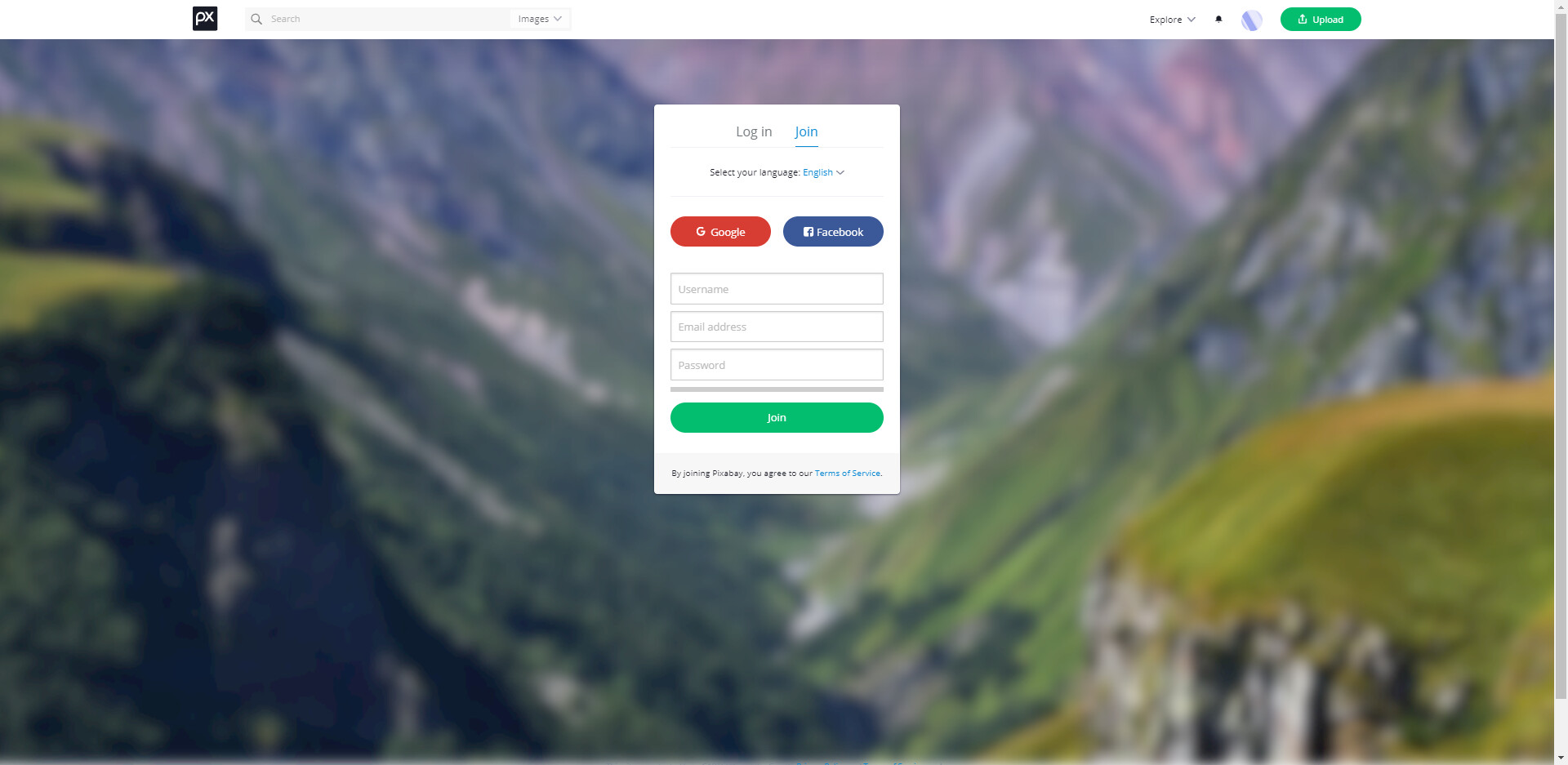

 Sign up for a free Pixabay account to get an API key at https://pixabay.com/accounts/register/.

 Add an HTTP Request node to your n8n workflow.

 Configure the HTTP Request node by entering the Pixabay API endpoint URL in the “URL” field: Pixabay API Documentation
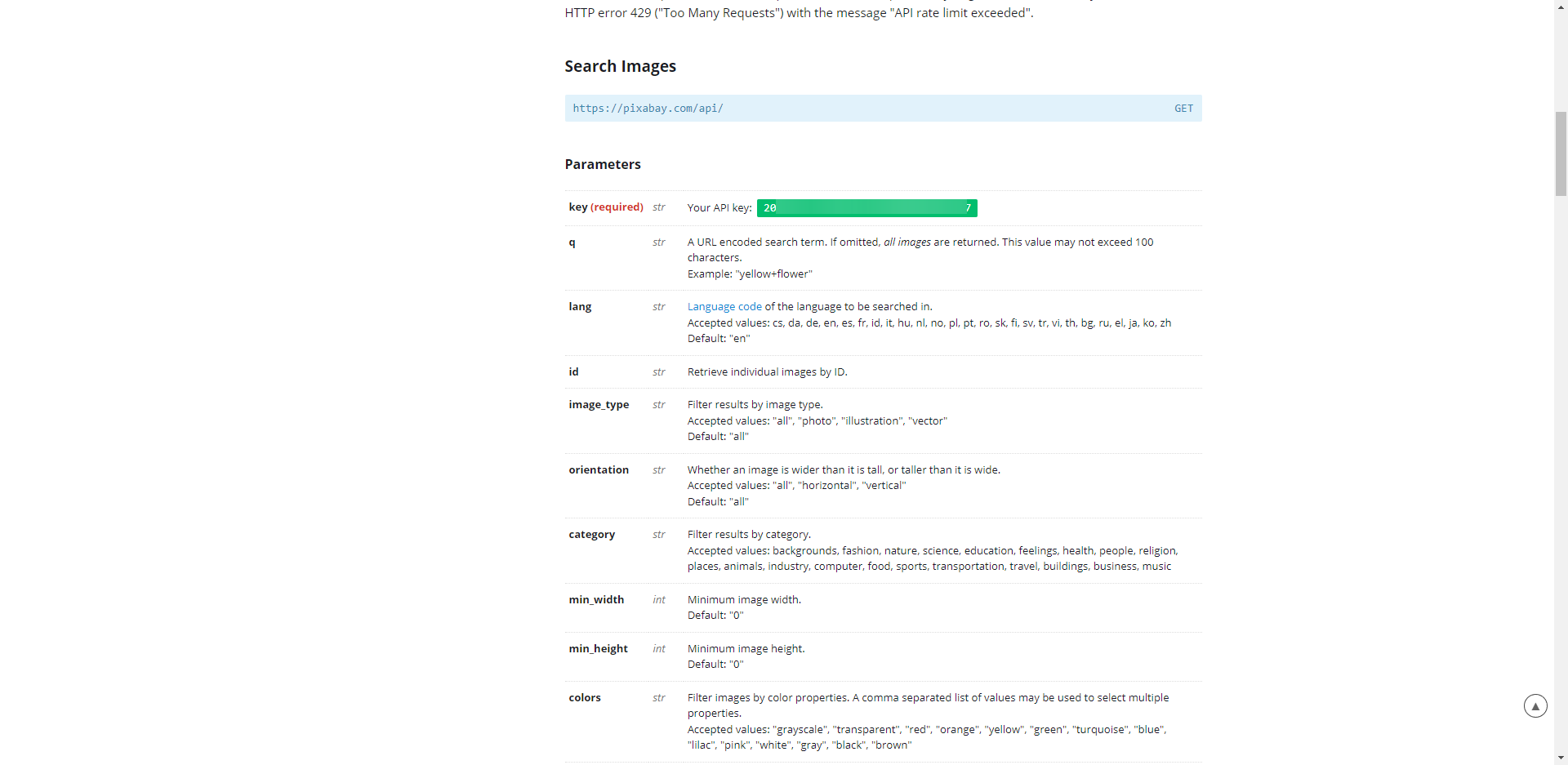
Note: If you don’t see a API key you might have to scroll down on the page.

 In the “Query Parameters” section, add the following parameters:
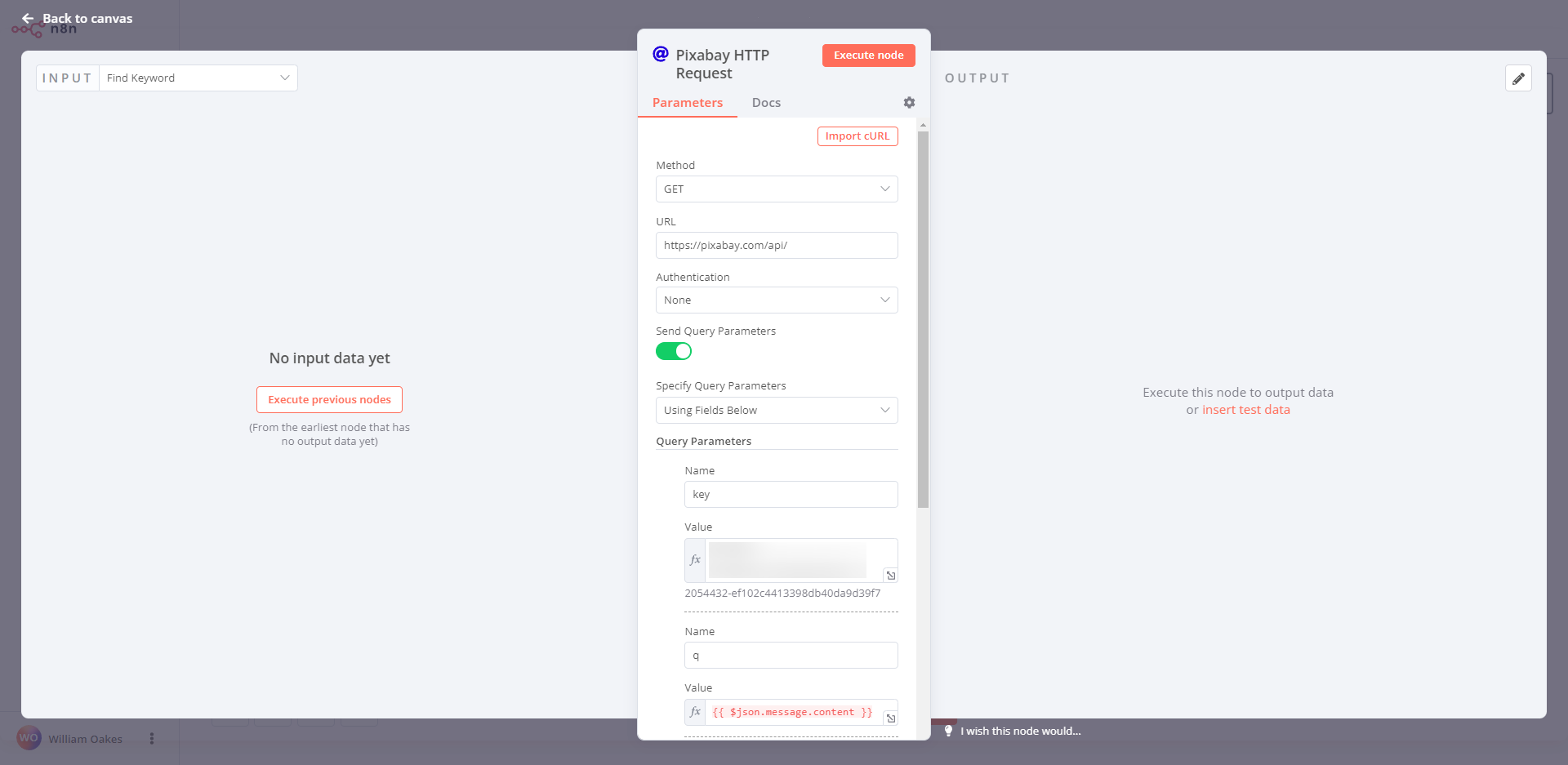

key: Your Pixabay API key
q: The search term for the images you want to find
image_type: The type of image you want to find (e.g., “photo”, “illustration”, “vector”)
per_page: The number of results you want to return per page
page: The page number of the results you want to retrieve
For example, you might set the following parameters:
-
key:your_api_key -
q:dog -
image_type:photo -
per_page:10 -
page:1

 In the “Response Format” section, choose “JSON” as the response type.

 Click “Execute Node” to run the node and retrieve the images from the Pixabay API.
That’s it!  You can use the data returned by the Pixabay API to display the images in your application or perform other actions with them. Good luck!